Activating or Removing a CabMaster Cloud License
Activating the License
To share a cloud license with more than one computer, you will need to follow these steps to Acquire and Revoke the licensing from a computer.
1. The first step is to acquire the license. If you have your cloud license handy (usually in an email or text file on the computer, copy the license to your clipboard by highlighting the text, and either right clicking and pressing copy, or hitting the control and c keys at the same time.

You must capture all the text from the "----BEGIN" all the way through to the CLIPBOARD-----"
2. After you’ve copied the license, run CabMaster and you will be greeted by the screen below. The license will automatically get pasted in (otherwise press paste license). After the license is in the text field, hit activate and CabMaster will be licensed on that computer.
You need to have an active connection to the internet. There is a delay whilst it communicates with the server before it continues to load CabMaster.
Removing the License
1. If you wish to delicense the computer, you can revoke the license by going to the Options and pressing the remove license from computer button, as seen below.
2. To get to the options, press the F10 key or go to file, then options is down the bottom. If you see the second image below, the license has been removed and you are free to license another computer.
3. Once you have selected “Remove License From This Computer” you will get several prompt messages. This message is to warn you CabMaster is going to shutdown to complete this task.
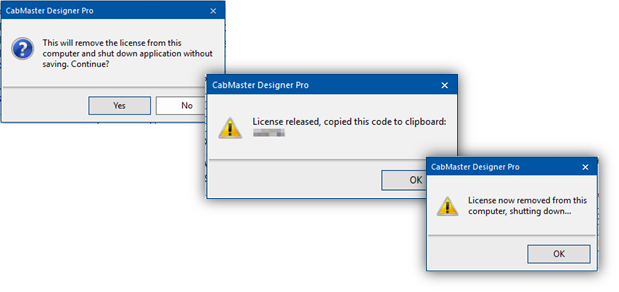
During the delicensing process you will get a Release code, which can be later manually removed if the automatic process failed.
Related Articles
How Cloud2 Licenses Works
Cloud2 Licenses work differently for Cabmaster users and ShapeMaster users! Click on the below to expand and learn about C2 Licenses for Cabmaster users and ShapeMaster users! CabMaster C2 Licenses Click below to expand How they work for CabMaster ...Installing CabMaster
Step-by-step instructions Download and Run 1. Download the latest CabMaster install CD. Click to Download the Latest Version 12 CD 2. To run the downloaded EXE file, right click the Exe and select 'Run as administrator' 3. Select 'Yes' on the User ...What's New - CabMaster V12 Build 40 Release Update
CABMASTER UPDATE V12 CabMaster V12 Features Application 12.0.0.40 Library 12.000.2.1 There are some exciting new features in the new version 12 release. Some of these changes include: 64-bit application New CM-Design-2 models library Walkthroughs ...Not able to open PDF Reports directly from CabMaster
Introduction Adobe has an Enhanced Security feature that will block PDF documents from launching if launched from a program running as Administrator (i.e.: CabMaster). To fix it, follow the steps below. NOTE: If you have attempted to run Adobe ...CabMaster cannot find a library and cannot see F Drive or other mapped drives
Introduction If you encounter an error where CabMaster cannot locate a library or you’re unable to see mapped drives (like F: or others), you can follow the steps below to resolve the issue. In a standard setup of a Microsoft computer Elevated ...